
Portal
Upon logging in to CX Fabric, you will be directed to the Home page, designed to give you quick access to key features and information. The home page is structured for ease of use, helping you navigate the platform efficiently.
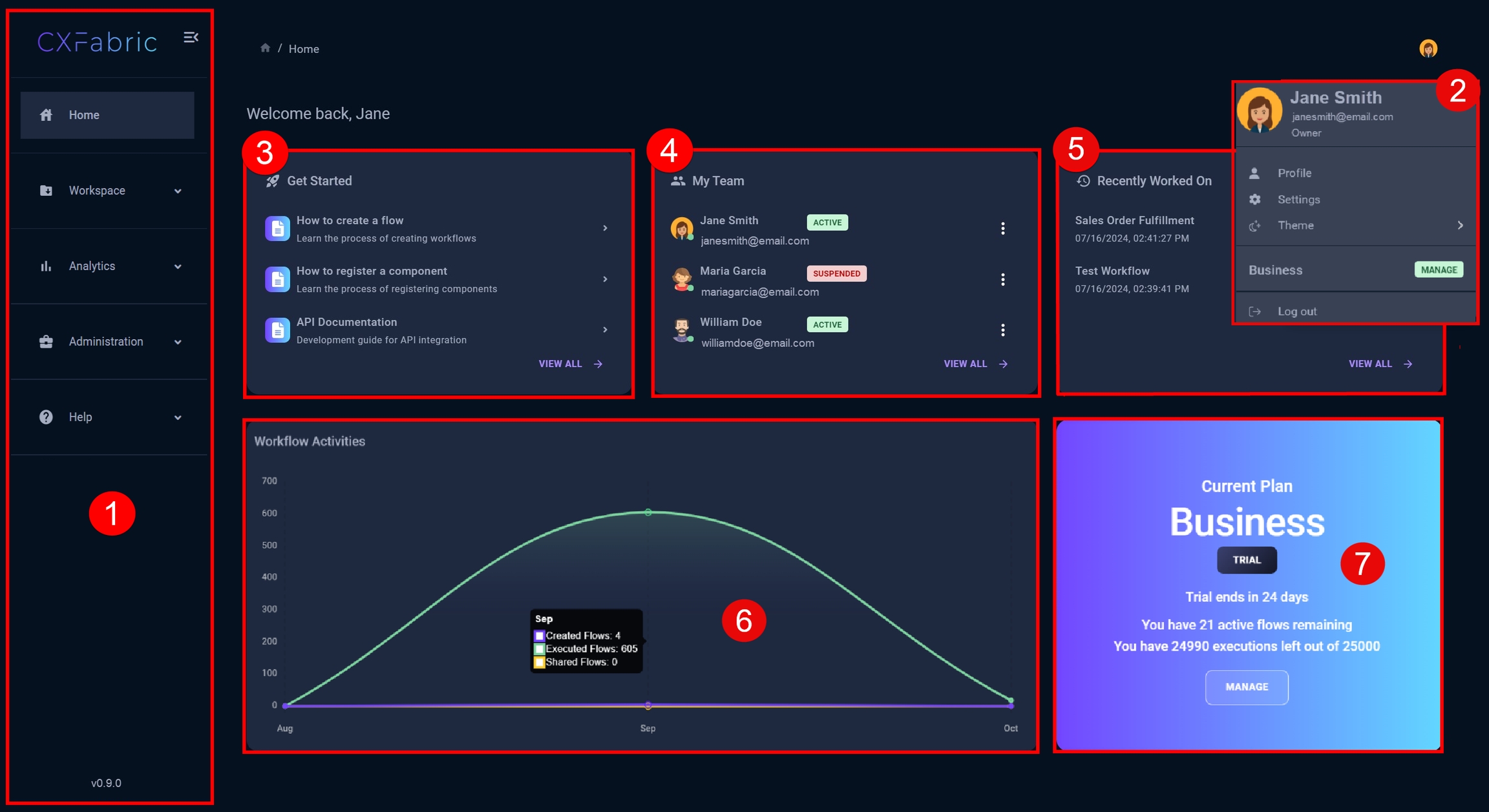
It consists of 7 main sections:
Navigation Bar: Located on the left side of the screen, the Navigation Bar provides easy access to the various sections of the platform. Clicking on a specific menu item will take you to the corresponding section, enabling you to explore specific data and functionalities.
User Menu: Accessible by clicking the user avatar in the top-right corner of the screen, the User Menu offers quick access to account settings and profile information. From here, you can update your profile, change your password, view your access token, and enable two-step authentication for added security. For more details, refer to the Account Setup guide.
Get Started: The Get Started card offers quick links to essential resources that will help you navigate the platform.
My Team: The My Team card displays a list of users in your organization or tenant. This section is useful for collaboration and team management, allowing you to easily see and manage team members who have access to shared resources.
Recently Worked On Flows: This section shows a list of flows that you have recently accessed or worked on. It provides quick access to frequently used workflows, making it easy to resume work or revisit important projects.
Workflow Activities: The Workflow Activities section provides a graphical representation of recent workflow activity. You’ll see data on created, executed, and shared flows, giving you insights into how workflows are being used across the platform. This helps track workflow trends and identify active processes.
Current Subscription Plan: The Current Subscription Plan card offers an overview of your current plan.
Subscription Plan Overview
This card helps monitor your subscription usage and ensures you stay informed about your plan's limits and benefits. It displays the following information:
Plan Type: Details of your subscription plan.
Trial Period Status: If applicable, the remaining time in your trial.
Active Flows Remaining: The number of active flows you have left within your plan limits.
Execution Count: A tally of how many times flows have been executed in the current billing cycle.
NOTE
The available features and actions within the Home page are strictly determined by your roles' permissions. This means that you will only have visibility and access what is specifically authorized based on your assigned role.
Last updated