# Credential Management
### Overview
CX Fabric's Credential Management is a secure and user-friendly solution that allows users to create, store, and manage their private credentials for various apps and services within the CXFabric platform. The system will enable users to authenticate themselves and establish connections between the apps or services and the CXFabric component using created and stored credentials instead of asking the users to enter credentials for every node or flow.
{% hint style="info" %}
NOTE
The available features and actions within the Credential Management page are strictly determined by your roles' permissions. This means that you will only have visibility and access to the following actions that are specifically authorized based on your assigned roles:
{% endhint %}
Credential Management page
Credential in Workflow Component
### Managing Credentials
#### Adding a Credential
Adding a credential is straightforward and helps in securely storing the necessary details to connect to various services.
1. To add a credential, click on the "ADD CREDENTIAL" button.
2. Select the application type from the available options:
* AWS Signature
* Basic Auth
* Bearer Token
* Database
* Redis
* Salesforce Signature
* SFTP
* SMTP
3. Enter the required fields based on the selected application type, including name, host, port number, username, password, and any other relevant details.
4. Click "Add" to save the credential.
5. Confirmation: A message will appear "User credential created successfully!"
#### Editing a Credential
You can easily edit existing credentials to update or correct the information.
1. Locate the credential you wish to edit from the list of credentials.
2. Click the ellipsis menu next to the credential name to see the "Edit" option.
3. Update the necessary fields or any other relevant details.
4. Save the changes by clicking the "Save Changes" button.
5. A confirmation message appears "User credential updated successfully!"
#### Viewing a Credential
You can view the details of your stored credentials for verification.
1. Locate the credential you wish to view from the list of credentials.
2. Click the ellipsis menu next to the credential name to see the "View" option.
#### Sharing a Credential
You can share your credentials with other users in your workspace for collaborative purposes.
1. Locate the credential you wish to share from the list of credentials.
2. Click the ellipsis menu next to the credential name to see the "Share" option.
3. Select the user(s) in your tenant by checking the box next to their name.
4. Click the Share button.
5. A confirmation message appears "User credential shared successfully!"
#### Deleting a Credential
You can delete credentials that are no longer needed.
1. Locate the credential you wish to delete from the list of credentials.
2. Click the ellipsis menu next to the credential name to see the "Delete" option.
3. Confirm the removal by following any on-screen prompts or confirmation dialogs.
4. A confirmation message appears "User credential deleted successfully!"
#### Testing a Credential
Testing a credential ensures that the connection to the external service or application is correctly configured and operational. This step is crucial for verifying that all required fields are accurate and the credential can successfully authenticate and connect.
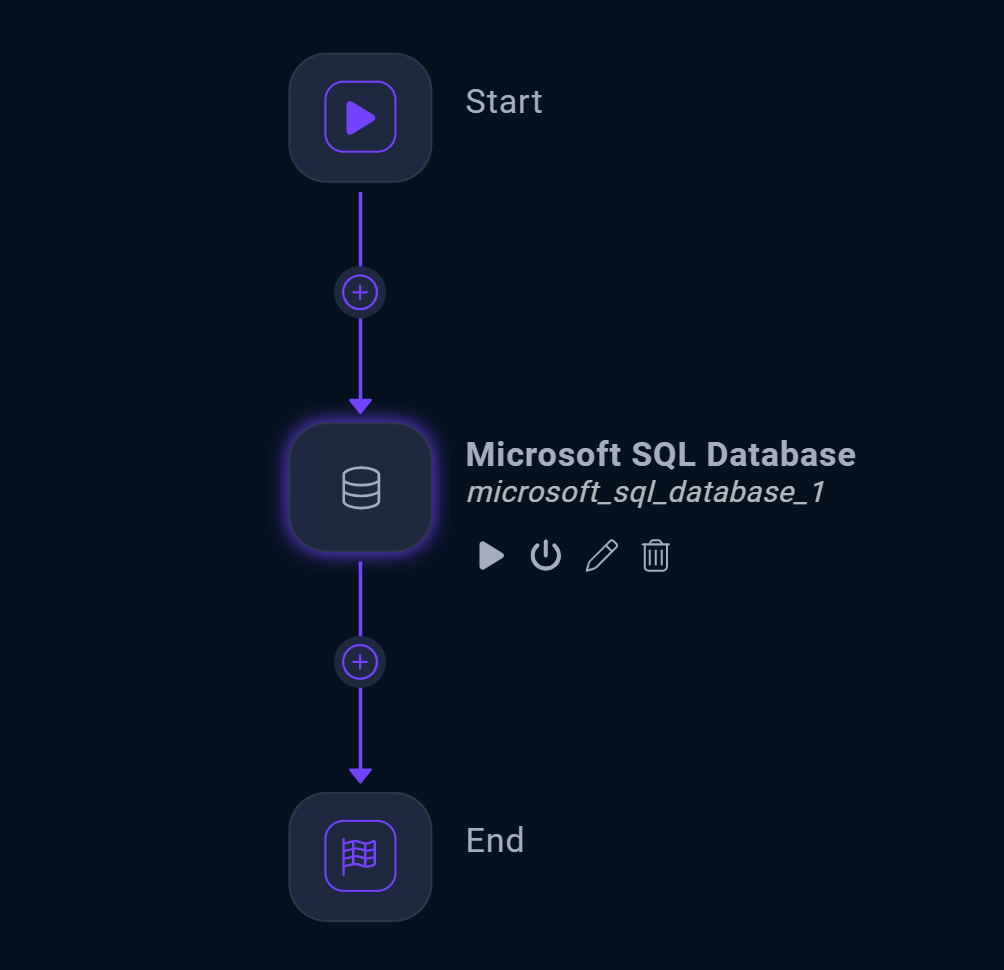
1. Create a flow or edit an existing flow.
2. Add a component/connector that matches the application type of your credential (e.g., , Database, SFTP, etc.)\
\
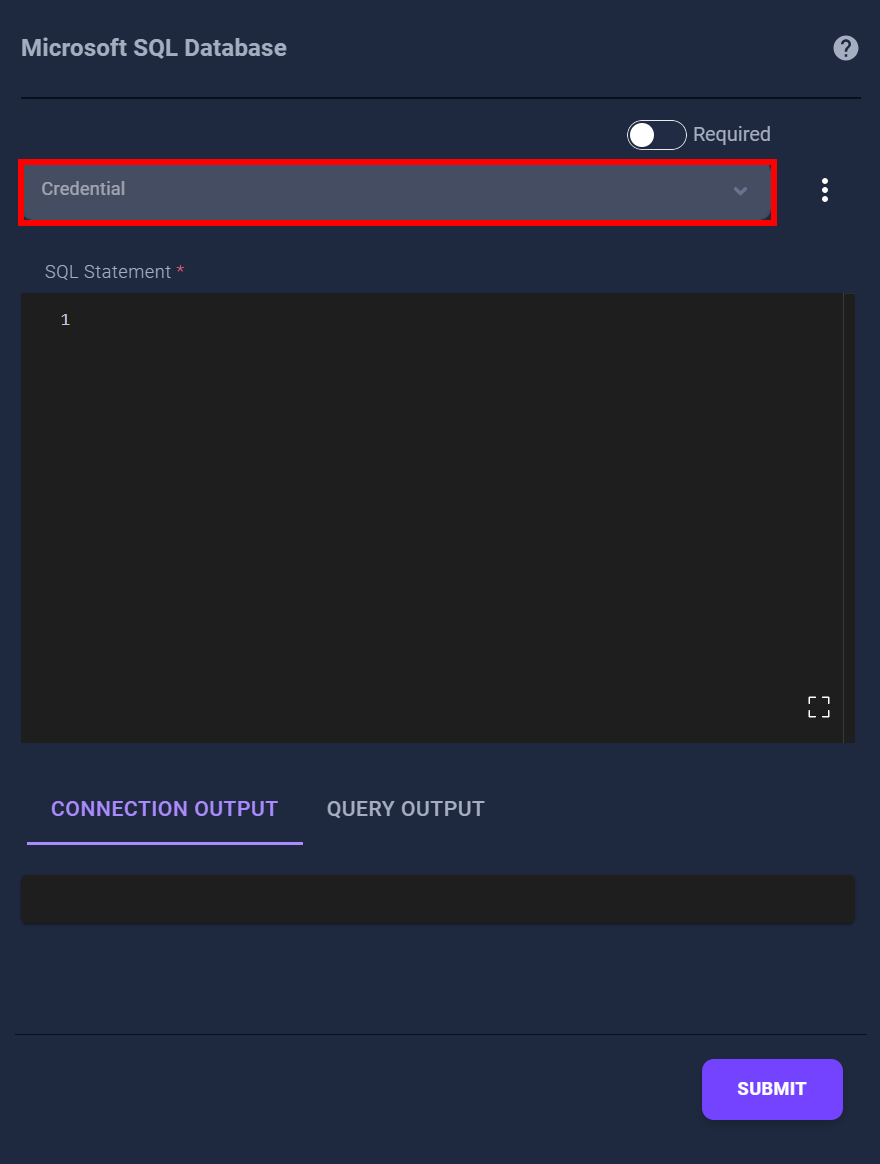
3. Click on the component/connector you added to open its configuration panel.
4. Select the credential you created from the credential options.\
\
\
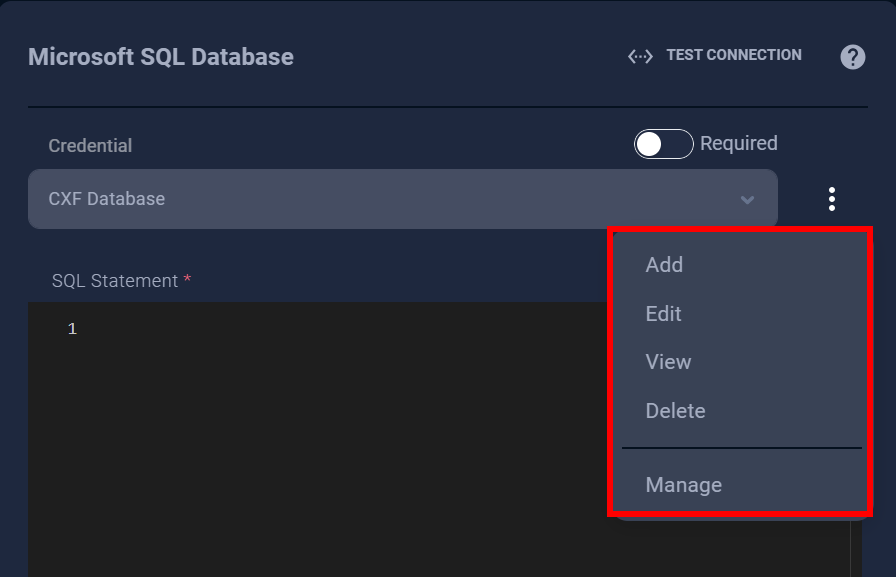
You can also add, edit, view from the action ellipsis button beside the credential dropdown.\
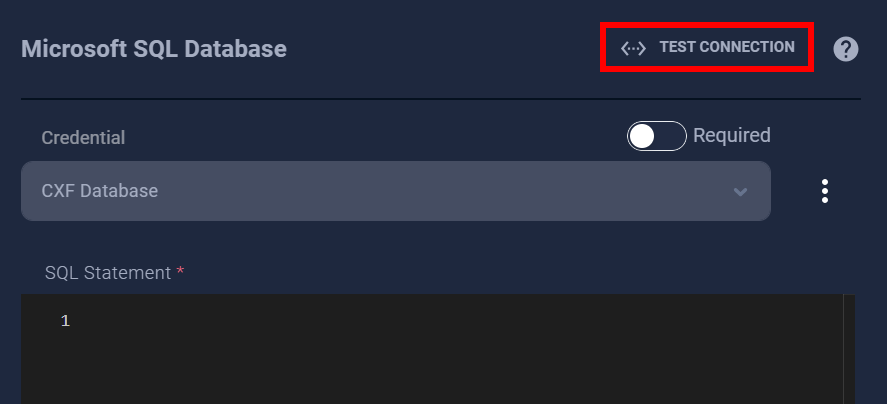
5. Click the TEST CONNECTION button to initiate a test of the selected credential. Note that the "Test Connection" button will only be enabled when a credential is selected. The connection output panel will display the result:
* If successful, it will show "Connection Successful," and the result panel will display data retrieved by the test query.
* If unsuccessful, an error message will indicate the nature of the failure.
{% hint style="info" %}
NOTE
* Ensure your credentials are accurately entered to avoid connectivity issues.
* Regularly update your credentials to maintain security.
* Use the sharing feature to enhance team collaboration while maintaining control over your credentials.
* Test your credentials upon creation to ensure they are functional. You can test the connection in the designer on the workflow component that requires credentials.
{% endhint %}
---
# Agent Instructions: Querying This Documentation
If you need additional information that is not directly available in this page, you can query the documentation dynamically by asking a question.
Perform an HTTP GET request on the current page URL with the `ask` query parameter:
```
GET https://cxfabric.gitbook.io/docs/manage/credential-management.md?ask=
```
The question should be specific, self-contained, and written in natural language.
The response will contain a direct answer to the question and relevant excerpts and sources from the documentation.
Use this mechanism when the answer is not explicitly present in the current page, you need clarification or additional context, or you want to retrieve related documentation sections.