# Account Setup
### Overview
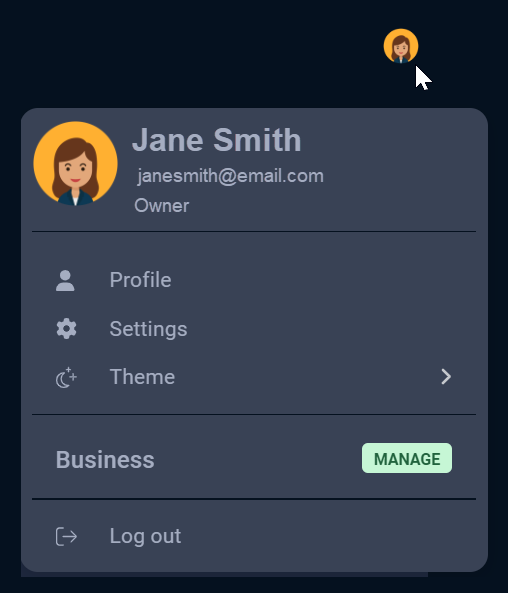
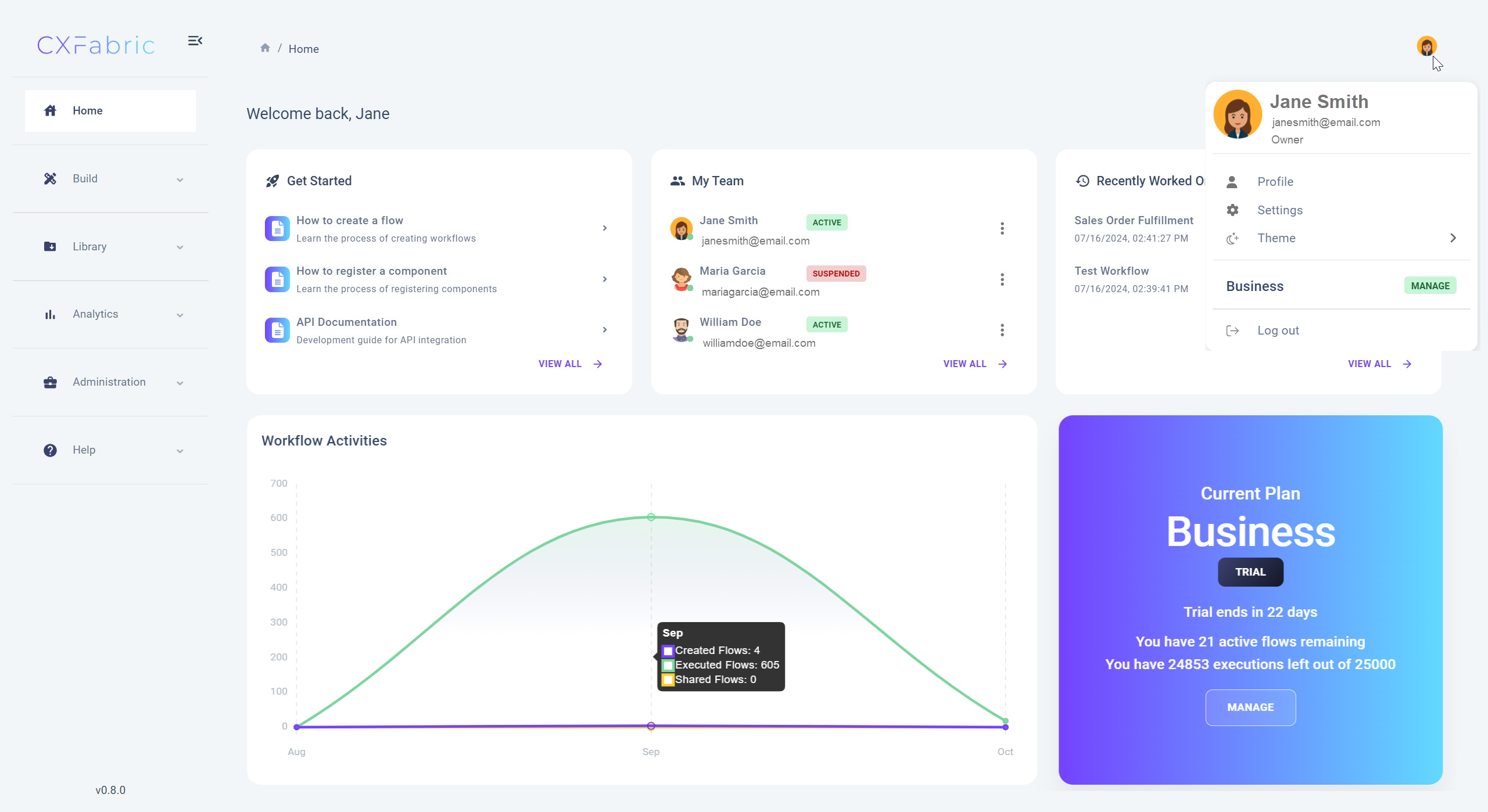
Once you’ve selected your subscription plan, you can set up your account and customize it to suit your needs. To manage your account settings, click the **User Menu** in the top-right corner of the portal. The user menu displays key account information, including:
* User Name
* Email Address
* Current Role
From here, you can access various account management options.
### Profile
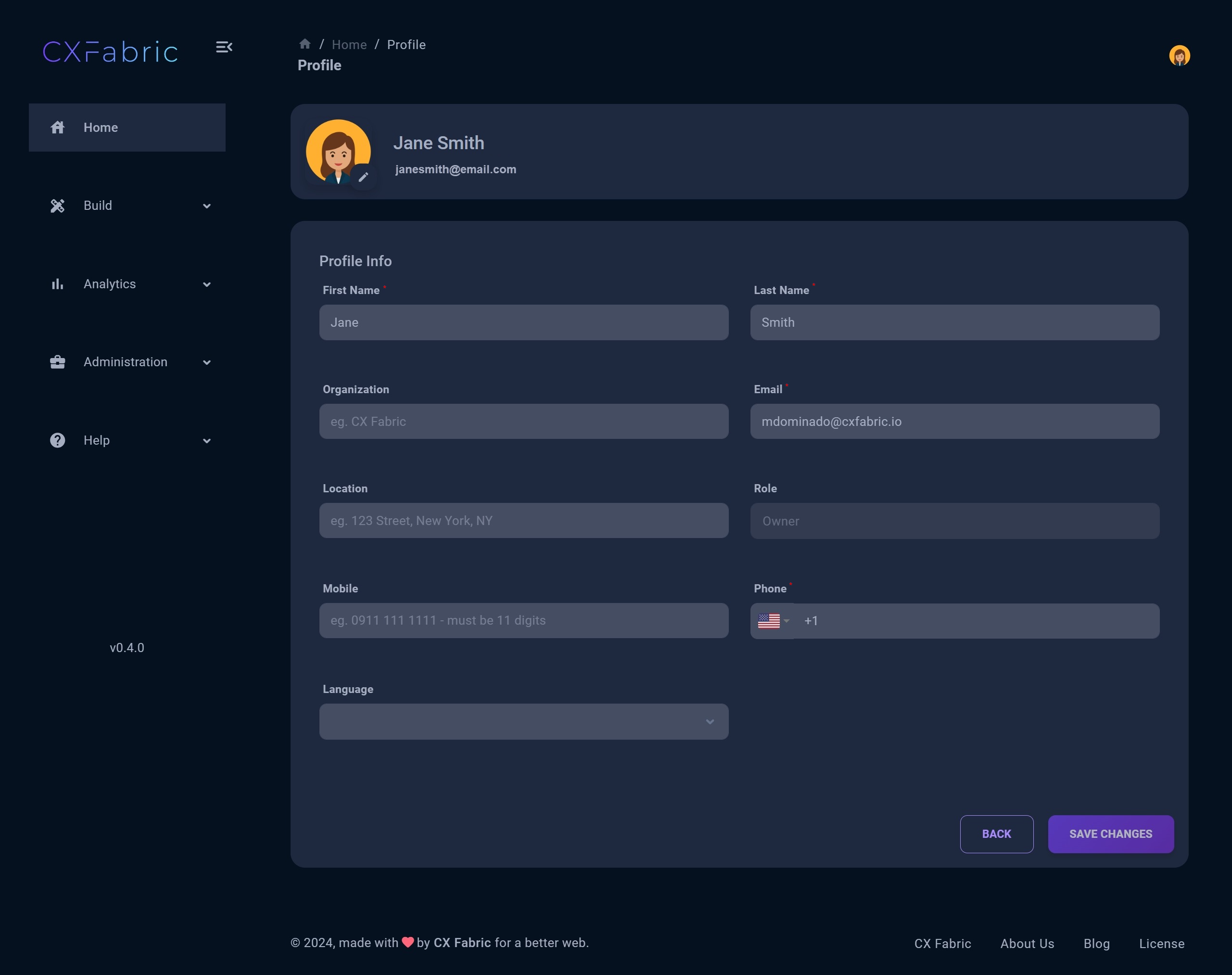
Under **Profile**, you can edit your personal and organizational information to keep your account up to date. You can also make these changes by navigating to the Users page, locating your account, and editing it there. Fields marked with an asterisk (\*) are required.
{% hint style="info" %}
NOTE
The available features and actions within the Profile page are strictly determined by your roles' permissions. This means that you will only have visibility and access to the following actions that are specifically authorized based on your assigned roles:
* Access to account page
{% endhint %}
### Settings
#### Change Password
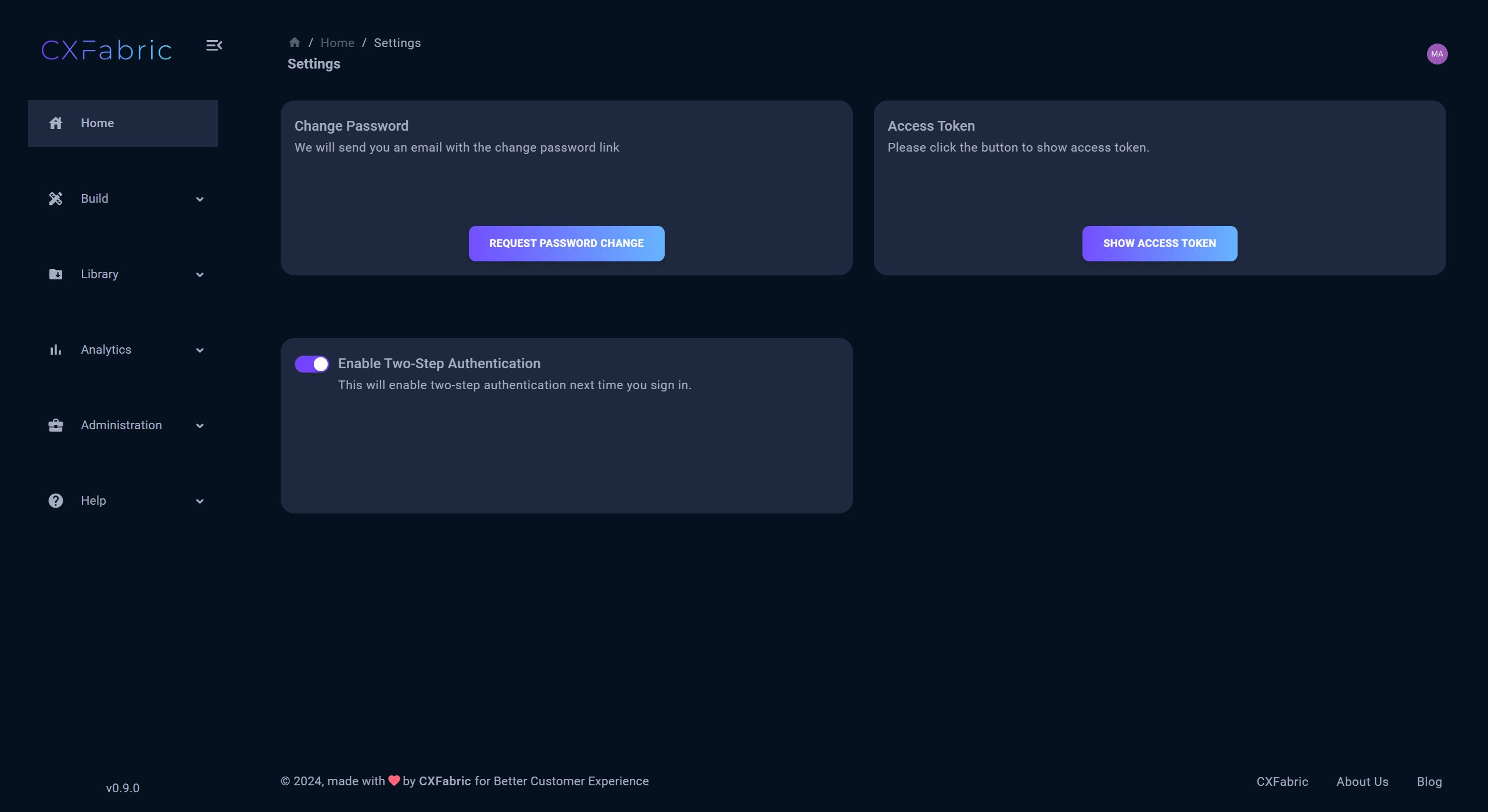
To change your password, click the **Request Password Change** button. An email with a password reset link will be sent to you. Follow the link to create a new password.
{% hint style="info" %}
NOTE
The change password option is not visible for users authenticated via Gmail SSO.
{% endhint %}
#### Access Token
An **access token** is a unique identifier associated with a specific user in the platform. Users can obtain their tokens from a settings menu, where the token is initially hidden but can be revealed and copied. Click the **Show Access Token** button to reveal the token.
Access tokens are required for using endpoints. The token identifies the user who invoked an API, allowing the system to monitor and account for who is executing flows and invoking APIs.
#### Enable Two-Step Authentication
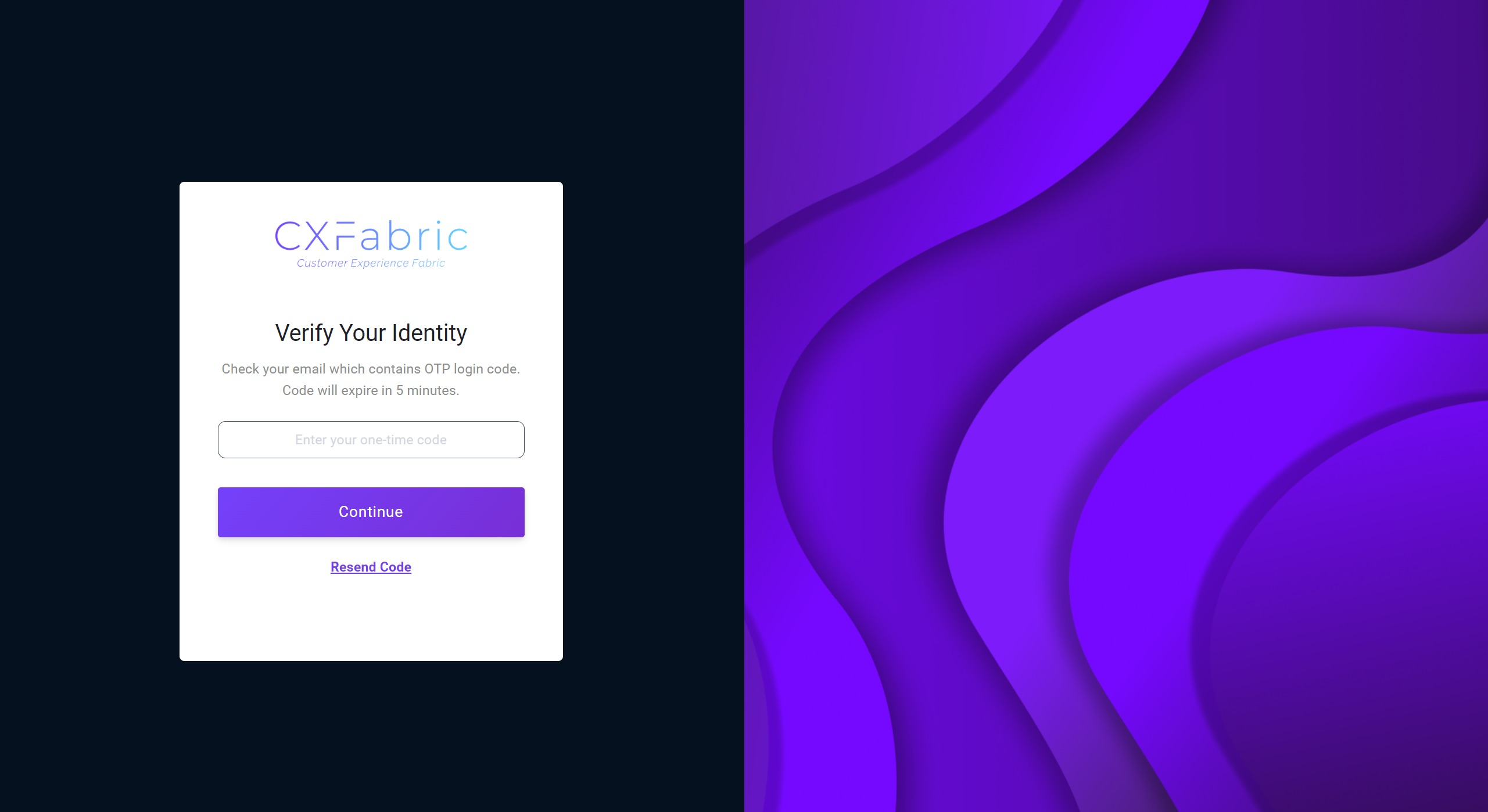
Enhance your account security by enabling two-step authentication (2FA), adding an extra layer of protection. Once enabled, each time you log in, you will be required to complete an additional verification step. A One-Time Passcode (OTP) will be sent to your registered email, which must be entered to confirm your identity. The OTP is valid for 5 minutes, ensuring both security and timely access.
### Theme
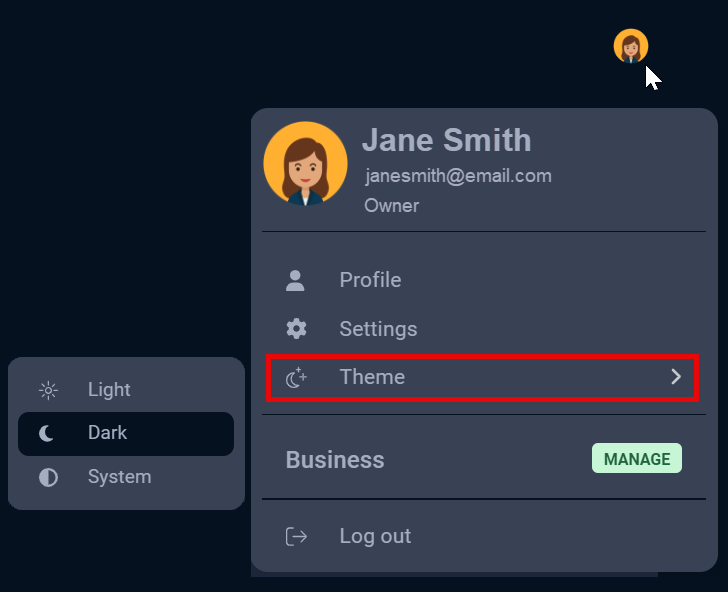
Personalize your visual experience by selecting between light and dark themes to suit your preferences. Simply click on the theme to explore light, dark, or system options, then select your desired theme.
Select Theme
Dark Theme
Light Theme
### Logout
To log out of your account, select **Logout** from the user menu. This will safely end your session.
Once you have successfully set up your account, you can invite users to your tenant on the Users page and manage [roles and permissions](https://cxfabric.gitbook.io/docs/manage/roles-and-permissions) on the Roles and Permissions page. These pages provide you with the necessary controls and options to configure user roles and permissions according to your specific requirements.