# Create a Schedule
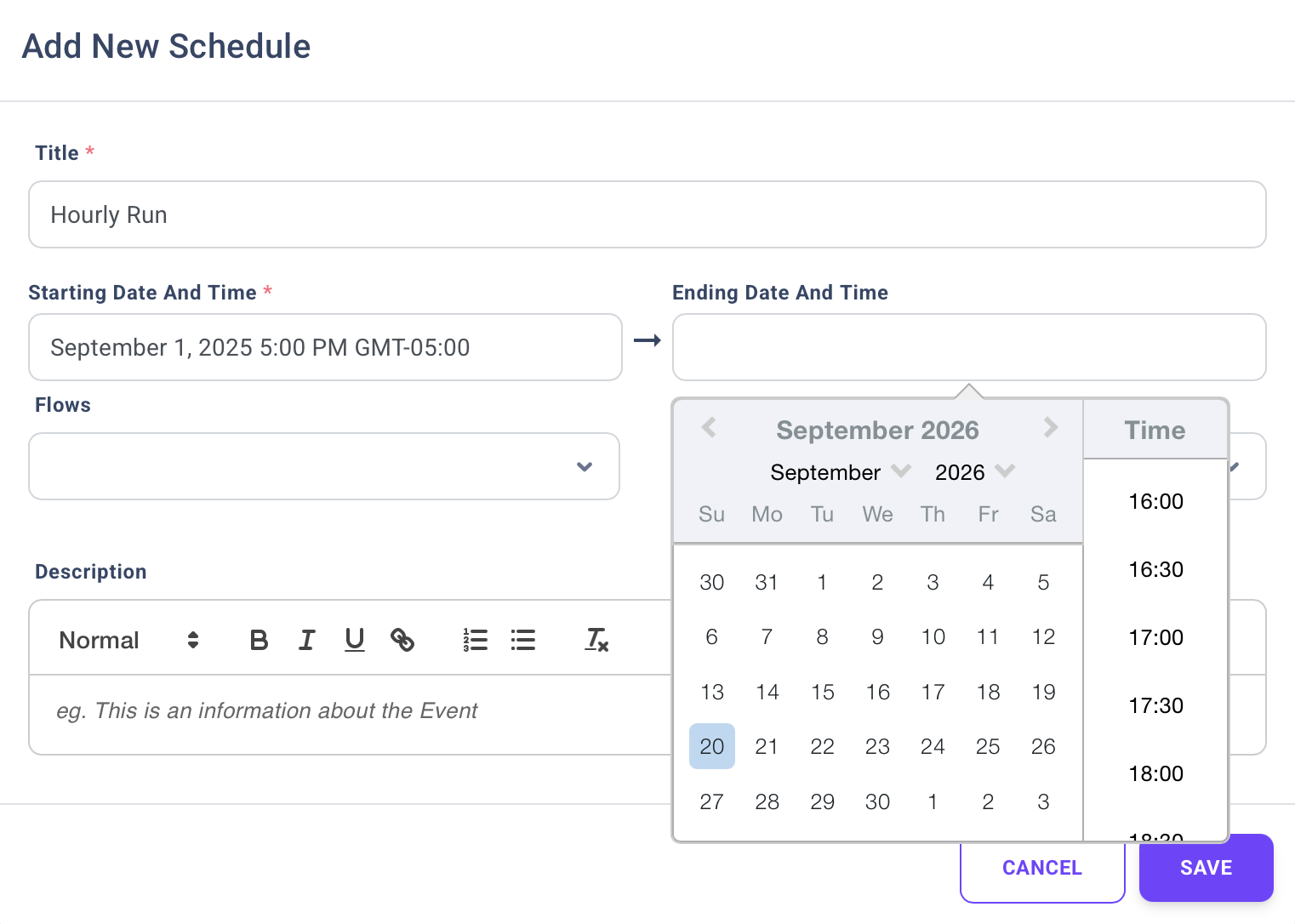
To create a new schedule in CX Fabric, go to the Schedules section. This will open the Add New Schedule card, where you can set up your workflow schedule by following these steps:
### Creating a New Schedule
#### Step 1: Provide Schedule Details
In the Add New Schedule card, fill in the following information:
* **Title** (required): Enter a name for your schedule to identify it later.
* **Starting Date and Time** (required): Set the date and time when the flow will begin execution.
* **Ending Date and Time** (optional): Define an end date and time, if applicable.
* **Flow** (required): Choose an active flow to associate with the schedule. This is the flow that will be triggered according to the schedule you set. *(Flows in draft mode are not available for selection.)*
* **Recurrence**: Choose how often the schedule will repeat:
* Does not repeat
* Minutely
* Hourly
* Daily
* Weekly
* Monthly
* **Description** (optional): Add any relevant details or notes about the schedule.
Create New Schedule
#### Step 2: Save Your Schedule
After providing the necessary details, activate the schedule by clicking the **Save** button. The system will automatically run the flow based on the recurrence and time settings you’ve defined.
The schedule's recurrence is represented by specific tile colors in the calendar:
* **Non-Recurring** schedules will be displayed in **Green**.
* **Recurring** schedules will be displayed in **Purple**.
* **Paused/Disabled** schedules will be displayed in **Gray.**
On the right side of the calendar, a list of upcoming events will be displayed. This provides a quick overview of all scheduled flows that are set to execute soon.